How to write prompts for H3 Image generation
 H3 Image
A practical structure for image generation prompts in H3 Image: subject, setting, light, style, and how to pick the right aspect ratio and resolution.
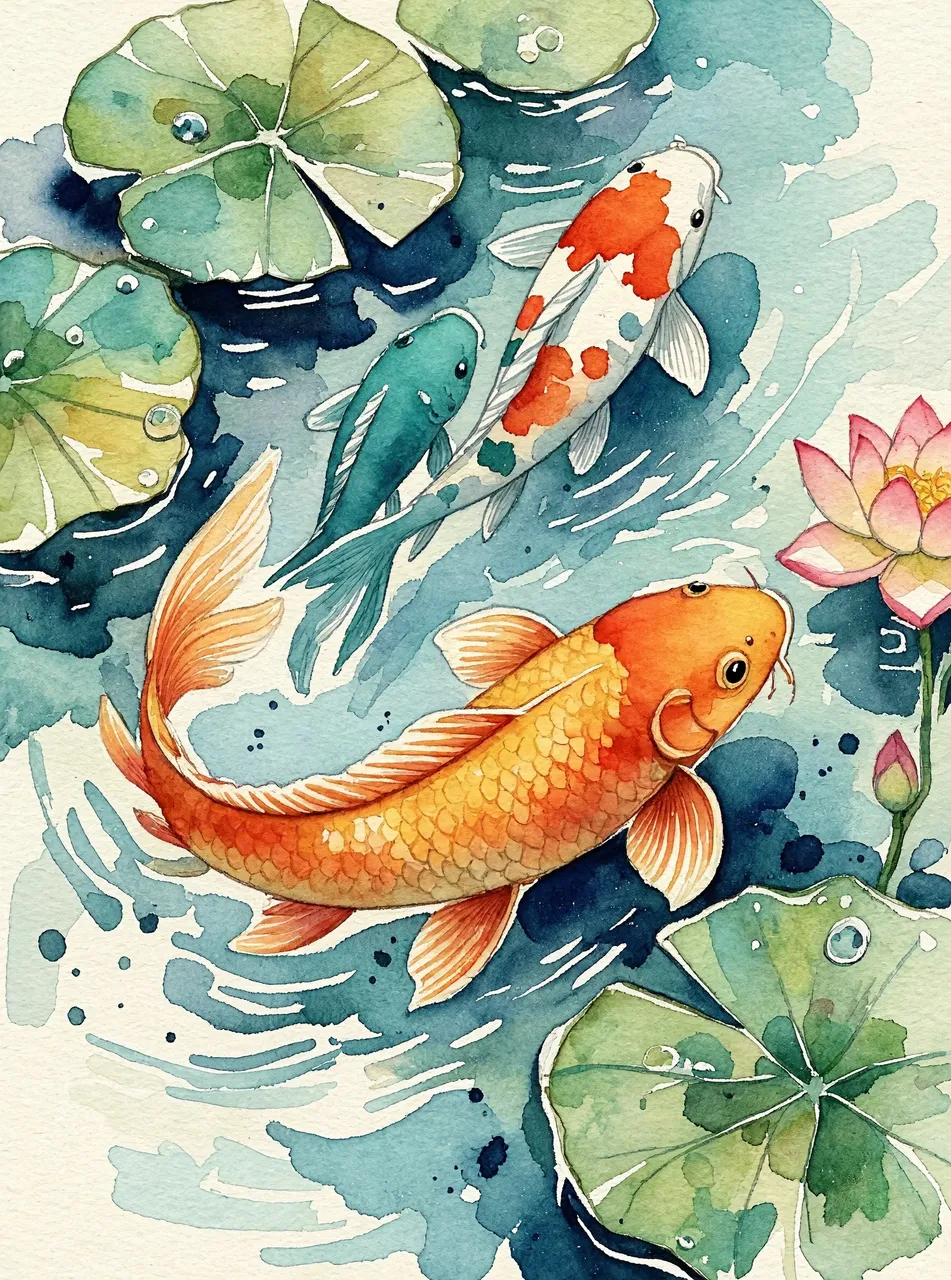
Image generation rewards specific prompts. H3 Image runs on the MiniMax H3 Image model, which reads long, descriptive prompts well, so you do not have to compress your idea into keywords.
A structure that works
Write the prompt in this order and you will rarely need more than two tries:
- Subject. What is in the picture? "A ceramic mug" is a start. "A hand-thrown ceramic mug with a speckled grey glaze" is a subject.
- Setting. Where is it? A wooden table by a window, a concrete plinth in a studio, a street corner in the rain.
- Light. Morning window light, hard studio light with a long shadow, neon reflections on wet asphalt.
- Style. Name the medium: 35mm film photo, flat vector illustration, isometric 3D render, watercolour.
- Framing. Close-up, wide shot, top-down, shallow depth of field.
Put together: A hand-thrown ceramic mug with a speckled grey glaze on a wooden table by a window, morning light, shallow depth of field, 35mm film photo.
Match the aspect ratio to the destination
Choose the ratio before you generate, not after. Cropping a square image to 16:9 throws away half of it.
- 1:1 for avatars and product tiles
- 9:16 for stories and phone wallpapers
- 16:9 for video thumbnails and slides
- 21:9 for website hero banners
Draft at 2K, finish at 4K
A 2K image costs 10 credits and a 4K image costs 30. Explore ideas at 2K with up to 4 variations per run, then render the prompt you like at 4K.
When the result is close but not right
Do not rewrite the whole prompt. Open the image in the image editor and describe only the change: "make the light warmer", "remove the spoon". Editing keeps what already works.
Ready to try it? Open the image generator.