Image editing with a prompt: what to write
 H3 Image
How prompt-based image editing works in H3 Image, with example instructions for backgrounds, style changes and combining several reference images.
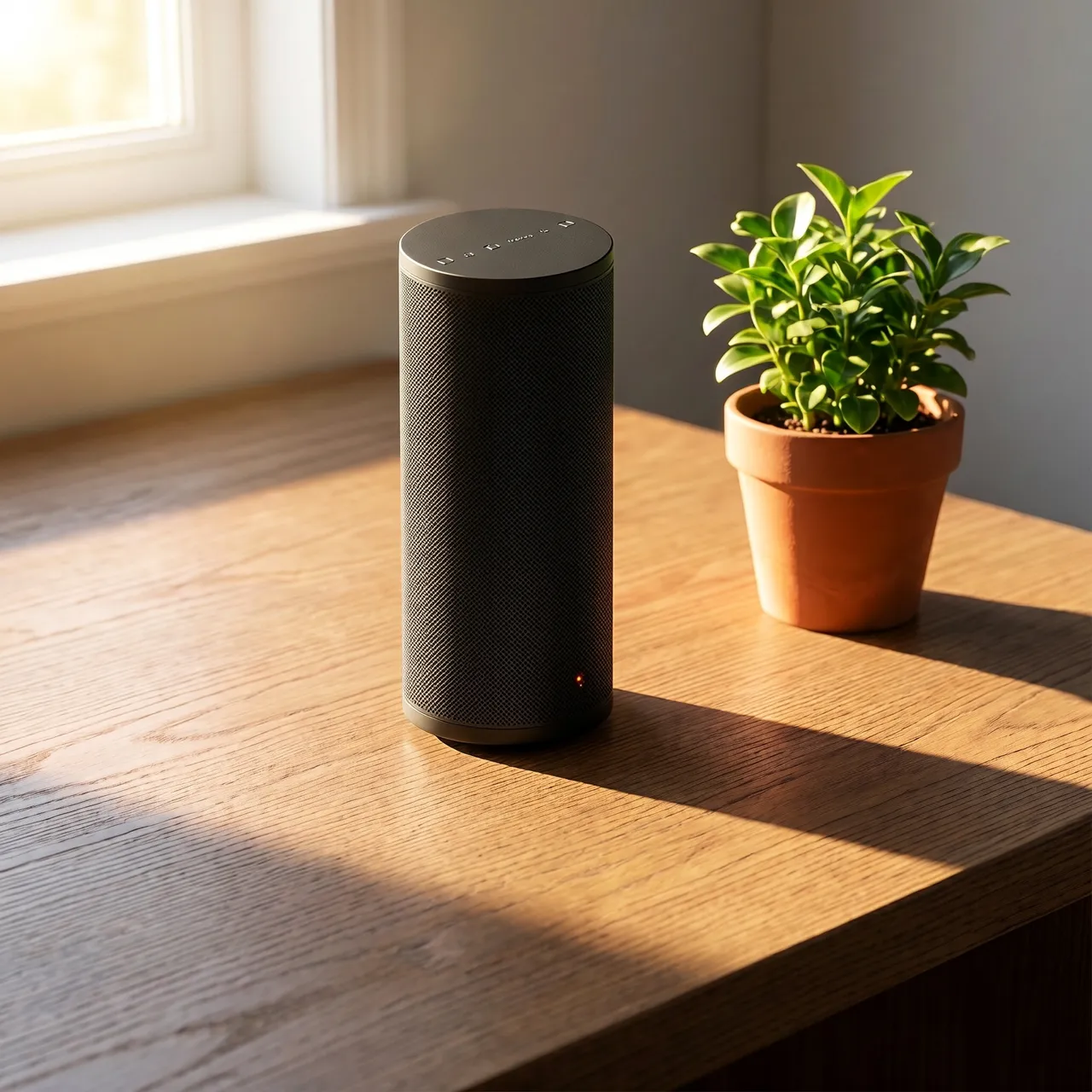
Image editing in H3 Image has no masks, brushes or layers. You upload one or more images, write an instruction, and the MiniMax H3 Image model produces a new image that follows it. Your original file is never modified.
Write the edit like a brief
Say what should change and what should stay. The second half matters as much as the first.
- Background: "Replace the background with a plain light-grey studio backdrop. Keep the product and its shadow unchanged."
- Style: "Turn this photo into a flat vector illustration with a limited palette. Keep the composition."
- Objects: "Remove the coffee cup on the left. Leave everything else as it is."
- Light and colour: "Make it golden hour: warmer light from the right, longer shadows."
Use more than one reference
You can upload up to 4 images per edit. Tell the model what each one is for:
"Put the sneaker from the first image on the wooden bench from the second image, in the lighting of the second image."
Each reference image adds 5 credits per output image, so only include the ones the edit needs.
Aspect ratio: Auto or reframe
Leave the aspect ratio on Auto and the result follows your upload. Pick a different ratio when you want the model to reframe, for example turning a square product shot into a 16:9 banner.
Iterate in small steps
One change per edit gives the most predictable results. When an edit lands, click Edit this image on the result and apply the next change on top of it.
Open the image editor to try it, or start from scratch in the image generator.